Funky Pencil Monkey

Spent a couple of days in a bit of a funk. The world is just … ugh. My mood has been dark (which, all jokes aside, I partially put down to binging Walking Dead which finally got to Neagan, a character I despised so much on first contact, and the grim never ending awfulness of what the characters are going through that it genuinely has effected my mood, so I’ve put it away – no thanks, not watching that) have turned instead to the delights of Gone Fishing.

I’m in a fairly privileged position (in that I’m in a part of the world that is relatively stable, and safe) and so have decided I can’t watch the news at the moment either – things are too grim and it’s impacting how I think about stuff. I don’t remember when things felt this oppressive (plus the comic industry seems to be going through one of its cyclical crunches where there’s more published work than there are readers, and more talented comic book creators than there are jobs for them)

There’s a guy in fixing my gas (big bill I could do well without) and he’s working in my studio room. So I’ve decided to blow the cobwebs off a script idea I had a few years ago (oh god, just after me and Declan did “M” for Dynamite, in 2017) and start polishing it up with a view to drawing it myself as a commando digest sized comic.

Well, strictly speaking I’ll be drawing it A5, and printing either A5 or some reduction of same.

I wrote a fairly detailed treatment of it, and then I rewrote and rewrote it. It was a James Bond pitch originally, and I’ve turned it into “John Regent” a Bond like MI6 Secret Assassin.

Honestly it came about because in our book M, Bond’s boss – a former british soldier – returns to Belfast, and I thought “Oh, man… if James Bond came to Belfast … he could get stuck in an Orange Parade!” because Bond surrounded by a load of guys in Bowler hats marching to a band while he’s being hunted by OddJob is very very funny.

Of course, what often happens between inception and treatment/scripting is the original idea gets lost as you build your plot. So ultimately, that didn’t make it.

Anyway, I have a detailed treatment (no page numbers, just plot happenings) and 64 pages to do it in. So I’ve been trying to work out how long each section should be and man, 64 pages seems like a lot, but every page is only 1 – 2 panels. So you’re really cutting it up a lot. But that’s ok. Because the treatment basically breaks down into Prologue (it’s James Bond! gotta have the bond bit at the start!) Act 1, Act 2, Act 3 and Epilogue I’ve sort of picked arbitary points for these things to break down, that’s when you really start to feel it.

BUT – I’ve adapted tweets into comics, so taking this treatment and going, well, these words have fill 8 pages – beginning on a splash and ending on a splash, giving me roughly 12 panels to tell that part of the story isn’t impossible.

Plus, to be honest, I’m trying not to get bogged down on “what if this is rubbish?” so what. Then it’s rubbish. I don’t think it will be, I think it’ll be not-as-good-as-I-want-it-to-be, which has the same effect as “what if it’s rubbish?” and that effect is to stop you even trying.

So I’m ignoring that instinct and I’m going to write it in to pages, and then draw the damn thing as fast as is humanly possible. And then, if I get that far try and kickstart the beast (I won’t be after big numbers, just enough to get it printed)

But the kickstarter is a long way off, and honestly, I’m doing this because right now, my workload is very very light, and that’s not a terribly comfortable place to be for me. I’d rather have way too much work on.

Sent to kill the super hacker codenamed “White Rabbit” MI6 Assassin JOHN REGENT discovers that she is, in fact, an 11 year old non verbal autistic child. Mission aborted, REGENT and the girl are attacked. Betrayed, REGENT has to go on the run with the girl and her mother to find answers, and to discover just exactly how far down the rabbit hole this goes.

“White Rabbit”

Mutie Mayhem!

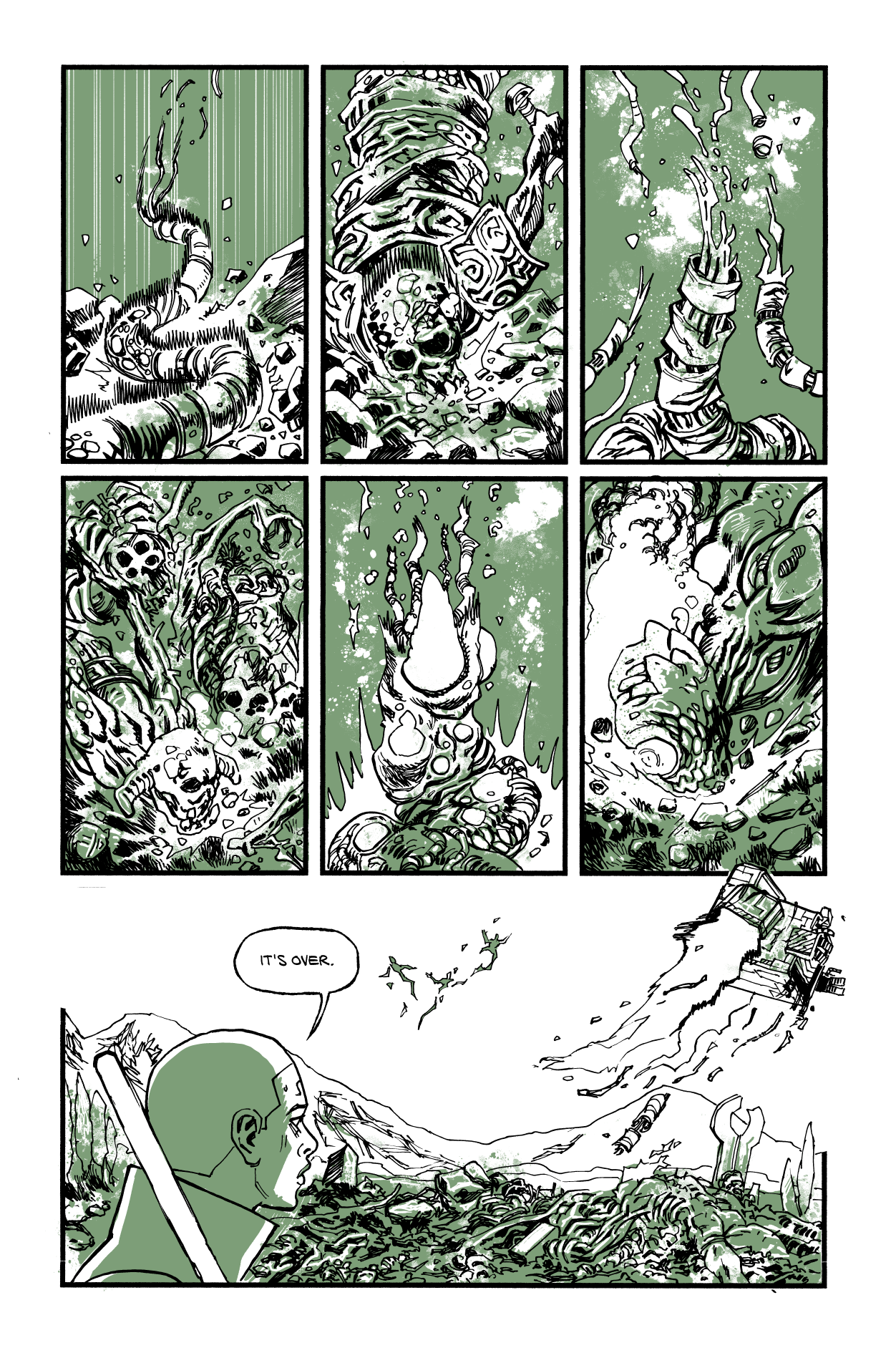
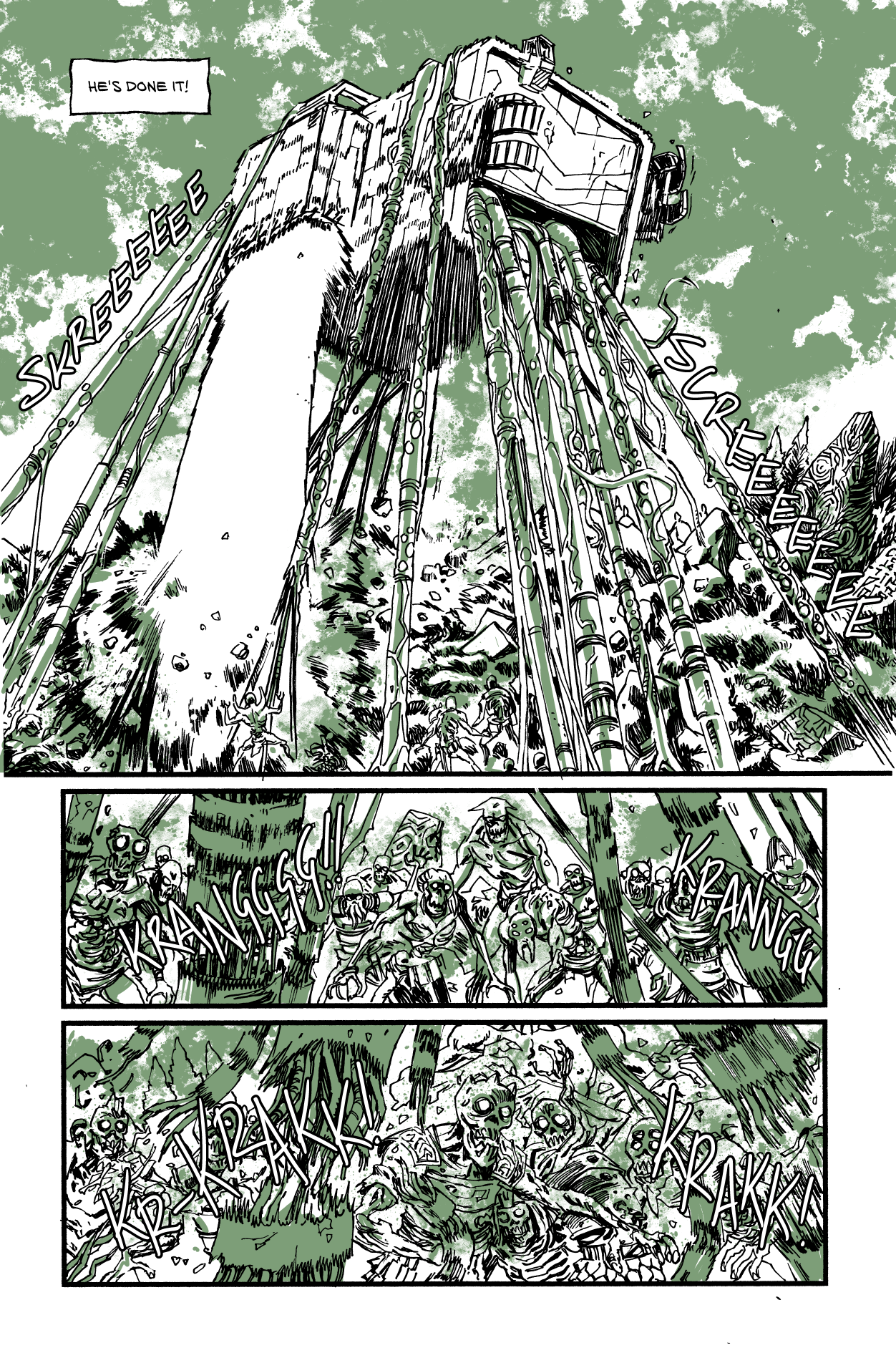
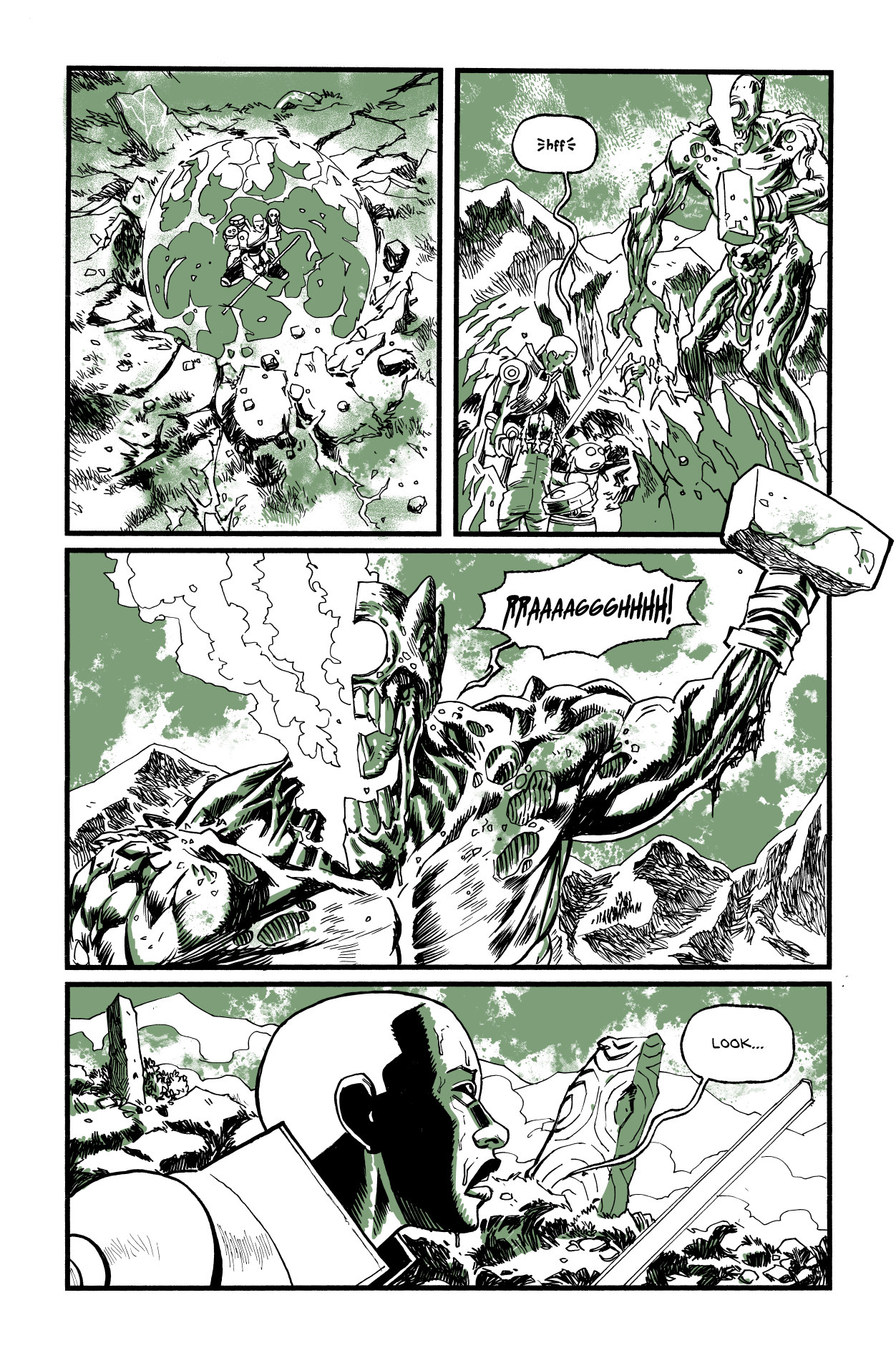
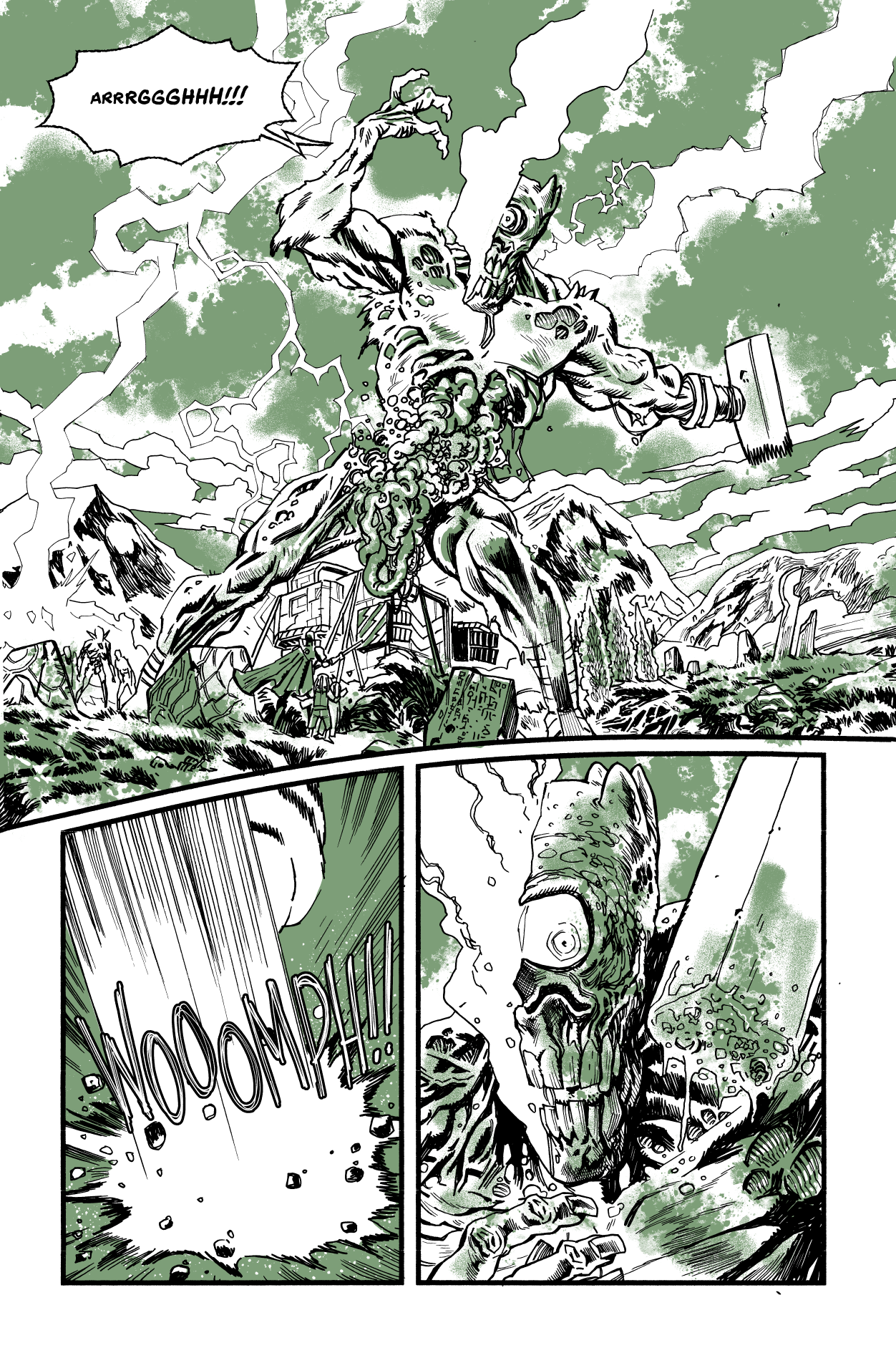
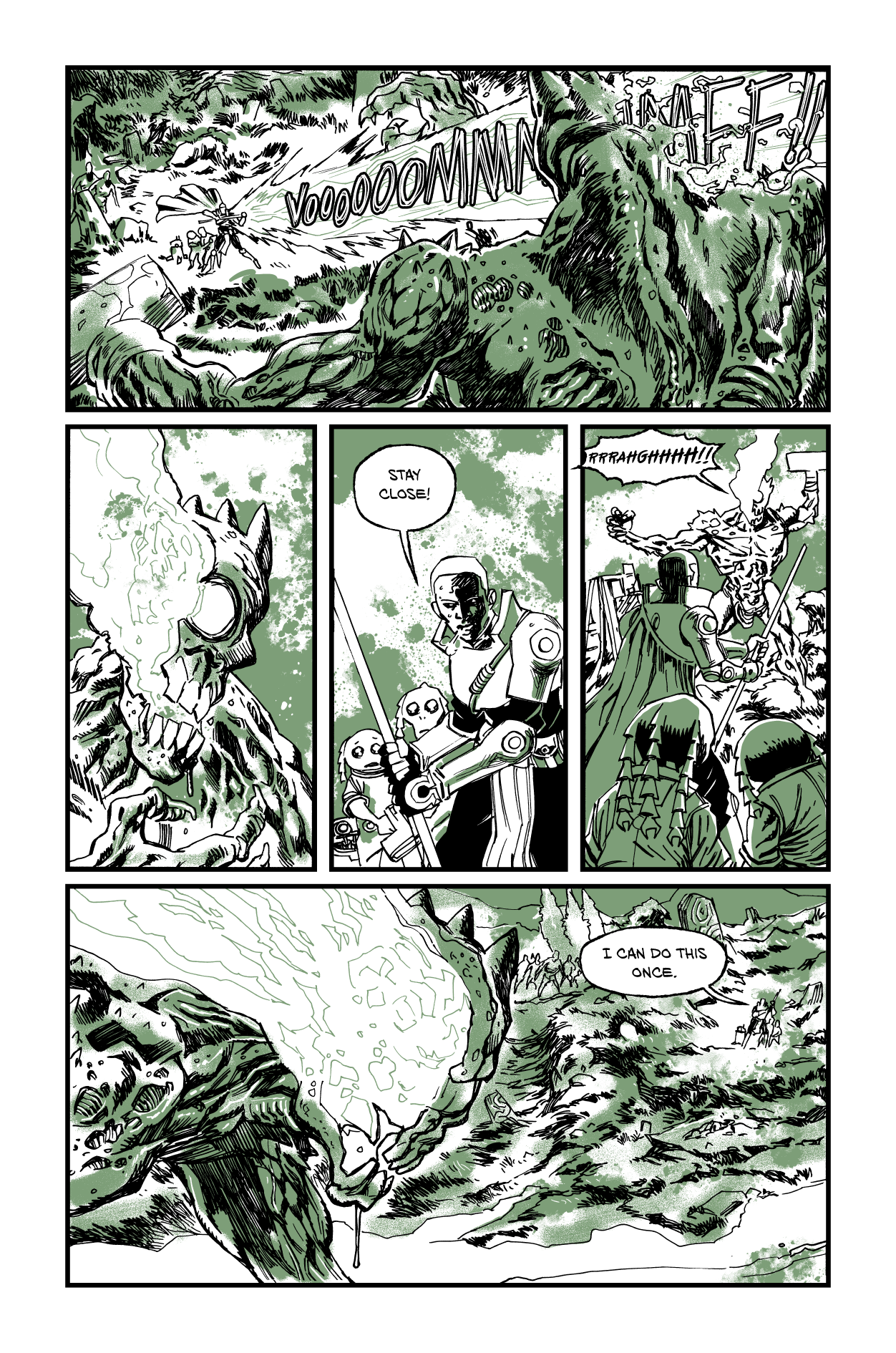
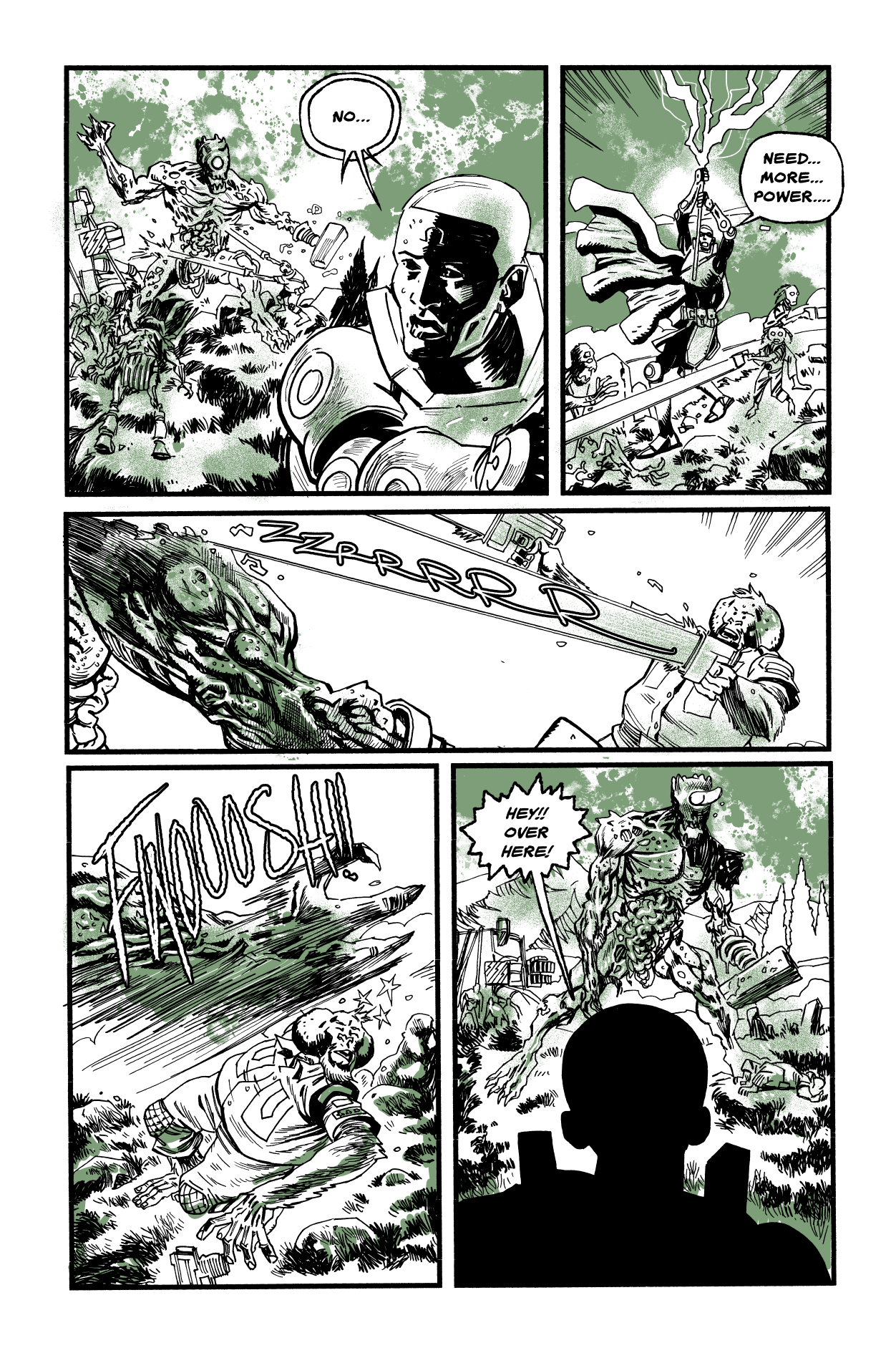
I don’t often just do a full piece for myself, but I’m off to cork this weekend and thought I’d do a very limited run of prints of a Judge Dredd piece.

The inspiration came from watching the walking dead and that scene in Skull Island where Tom Hiddleston is swatting weird monsters out of the sky with a machete through a green smoke (it’s an awesome awesome film if you haven’t seen it)

Drawn on paper and coloured in Clip Studio (using a whole load of tricks I’ve picked up from “Colour With Kurt” Kurt Michael Russell has a whole bunch of great videos (as well as a paid-for full tutorial) and i’ve been studying those things furiously. Still a long way to go, but I’m gonna try and colour more of my work.

Clip Studio Quick Access

I’ve refined my use of Clip Studio so much over the years (starting with Manga Studio 3(!) from 2006 – so coming up on twenty years) that sometimes when a new feature hits I don’t even bother with it, as I’m already optimised up the wazoo.

Anyway, a couple of versions ago, Clip Studio introduced a “Quick Access” panel – basically a pop up window that can have your most commonly used tools in one location (rather than scattered around all over the place).

I’ve been studying a bit on colouring in clip studio, and discovered that this quick access panel might answer a few distinct problems I have with workflow, and I’ve played with it and sort of love it. It’s especially useful if you have limited screen real estate. The quick access panel can use tools, menu items, actions or pretty much anything you want. I’ve set mine up for four distinct modes :

Pencilling, Inking, Flatting, Colouring and Lettering.

If you combine that with the ability to duplicate tools and add your own icons, you can have a powerful set of tools for specific modes. Here’s my pencilling set up (I won’t go in to too much detail, though I will answer comments if you have any!)

I’ve also mapped the quick access pop up to a key (Numeric zero on my keyboard or one of the quick buttons on the huion) which makes it really useful when you’ve a small screen with a small set of commonly used tools you want to pop up and down on the screen.

The Pencilling Quick Access

This has tools for Managing a new project, including an action to create page of thumbnails (custom icon on an action)

Tools for pencilling and tools for editing the panel layouts (all things I do at the pencilling stage)

Inking Quick Access

This is probably the simplest and action could be even simplified more. The numbers beside the tools here are part of the names – I coded the number keys along the keyboard with the various common tools I use and then renamed the tools to include the keyboard number so I wouldn’t forget. (Which a handy thing I nearly wish it was a built in feature)

Flatting Tools

Actually, I suspect they’re all simpler than the pencil quick access simply because it’s got most of the starting utilities I use for beginning a new project. One note on colour, I used to use the colour wheel for colour picking, but these days I’ve taken to using the colour slider, which gives you a Hue Saturation and Value sliders for changing the selected colour and takes the guess work out of which colour should I pick next.

Colouring Quick Access

No wait, this is complex! I have thousands of brushes, but lately, I’ve been focused on Kyle’s Builder Brush (Kyle of Photoshop brush fame, released this for free ages ago) and Daub Pigmentio Dual 02 – both add texture/noise to the colours as I paint them. Lots of great texture in the art.

Also a selection of actions to create different kinds of layers, saves me having to tap a new layer and adjust it afterwards.

And finally…

Lettering Quick Access

Text Edit is basically the object edit tool set up to only allow it to edit text. I’ve duplicated and created a bunch of text tools with the fonts I like, if I had time I’d make icons for all of them with the font in it (but I’m lazy)

And that’s it.

Comments are open, so if you wanna ask me about any of this, please do. (If you ask here rather than on the socials, I can answer where which means everyone gets the answer)

Scritchy Scratchy Screen

As you may or may not know, I bought a Huion Kamvas (sic) 16 graphics tablet and – for the price – it is FABULOUSLY impressive – honest. Resolution, while not 4k (it’s HD, but in a 16″ screen that’s about 140dpi) is actually pretty damn good and price wise (I got it for around £300) it is hard to beat.

Currently it’s on sale on amazon for £349 (and there’s a 15% voucher off the price too right now).

Mine is a year old. Within a very short period of time, I’d scratched the display up. At that price, it was slightly annoying but not maddening. One thing I didn’t buy with it, largely because I’d bought similair for the ipad pro and hated it, was a protective screen. BUT – I bought one recently an placed it on the screen and it’s really made a big difference, firstly the scratches (while still present and still visible) you can no longer feel – the pen just glides over them, and better – new scratches will only effect the screen protector and I can always buy a new one.

The protector I bought was this one (around £18 )

I did have a bit of a painful time getting the dirt out of it, accidentally adding more little bubbles of dirt when I tried to fix, and then I tried a different technique (I’ll not recommend it just in case it’s not great long term, but certainly short term it really helped)

I half lifted the screen protector off (half of it had lots of speckles of dirt the other half was pretty clear – all, I stress – my own fault) then sprayed lens cleaner, and wiped the dirty area with the screen protector cloths that came with the protector, then placed the screen on – which left slightly excessive bubbles of liquid under the screen, but I pressed those out to the edges (using a credit card) and it seems to have picked up all the dirt and restuck to the display perfectly well.

Next time I buy the screen protector and apply it immediately and if you’re buying the Huion I recommend you do the same.

Dept of Monsterology

Way back in time (2010?), Gordon Rennie and I kicked around the idea of a book called “Monsterology” (which needed renamed cus it turned out there was already a book called Monsterology). And we ended up finding a publisher in Renegade Arts. And it was a fun book and I’d’ve loved to have done more, but the audience wasn’t there, and while it’s nice to draw a book for money it’s no fun if there’s no readers.

Anyway, I stumbled across these in my photo library and thought you might like it.

You can find the book digitally on comixology, there were two books in the series and they’re both great fun.

Drawing the Basics

I have an immense and somewhat impressive library of “How to Draw Books” which, I’ll be honest, I’ve barely read. So I should make the effort, right?

And I am. Starting with the grandaddy of them all – How to Draw Comics The Marvel Way by Stan Lee and John Buscema – this edition is Titan, 1986 – so I’ve carried it with me a long time. It’s a slightly odd book, compared with a lot of other how to draw books. Probably down to Stan’s bombastic stylings where you might want some more thoughtful words from John Romita. And it feels dated, Marvel comics certainly don’t look like this any more (for shame!)

Anyway – heading in to the first section one and – I suspect because I’m older, and I’ve read a bunch of how to draw things, I’m seeing things in the art that aren’t at all explained by Stan but are pretty fundamental concepts. Take the first real how-to-section where Stan is talking about building objects and making them solid from simple geometric shapes.

Here’s John has drawn an ellipse at the end of the gun barrel, importantly he’s drawn a centre line on the ellipse that correctly matches the orientation of the ellipse – rather, as I’ve done for decades from force of habit a centre line based on a box shape. The weird thing is having a centre line that follows the ellipse you want to draw makes it much easier to free hand that ellipse. So I’ve annotated my own version of the book with those notes. It’s now a living document!

What John Romita is doing largely mirrors some solid advice I saw from Sean Gordon Murphy on drawing tyres (or really any cylindrical object)

Here’s the Sean Gordon Murphy advice (which was a nightmare to trackdown, stumbled across this on pinterest so apologies for the rubbish resolution) (If you can find the original of this advice, I’d appreciate it – I’ve never seen anything like it in any book)

Drawing page sizes for 2000AD

Here’s how I fit comics on to A3/A4 paper – A3 paper width is 297mm. 2000AD Page Size safe width is 264mm – subtract one from the other = 33mm, divide by 2 = 16.5 and I just measure in from the edge of A3 paper by 16.5 (and then do the same for the heigh of the page)

2000AD full bleed is just a little wider than A3 paper, so I just draw to the edge of the paper, scan it in to a document I’ve set up that’s the exact size for 2000AD and then fill in the extra digitally (it’s usually pretty easy)

And because I’m lazy, now I just mark the 16.5 mm in from the edge of the paper, and using the side of the paper block as a guide I just drag my pencil down along from that side (it’s not perfect, but that’s ok) and that’s good enough to get going on pencilling.

Once I scan the pencils in I can then straighten lines up, add digital panel borders and enlarge any pencils I need. Then -if I’m inking traditionally -I’ll convert the pencils to a light cyan colour, leave the panel borders black and then print that whole page out on the reverse side of the pencilled page, so I never rub any pencils out and every page of inked art is on the back of the pencilled art.

And here’s 2000AD’s full page sizes for art Page Size: 30.2cm x 39.43cm Panel Size (or the Safe Area, in other words – that area of the page that lettering will go into) 26.44cm x 35.79 cm If you want full bleed DRAW TO THE PAGE SIZE.

(there’s a trim size too, but you don’t need to know that, either draw to the page size for art to bleed off the page or draw to the panel size to ensure it all fits on the page, that’s it…)

Planning the week…

I know I’ll illicit very few sympathies for this, but it can be tough planning out when you’ll finish a book when you can find yourself hitting spurts of speed and equally, suddenly losing a day for family reasons can knock you off course pretty violently. It’s the driving equivalent of doing 90 in a 30 zone.

My plan is to roughly mark out days in chunks of four pages of pencils/two pages of inks. Last month the best I did was six pages of inks and seven pages of pencils in any single day, but you’d be mad to base your working life on that.

So four pencils, two inks. Two inks is a pretty average for many artists, speed wise, but I’m secretly hoping for the most part I can hit three/four pages of inks, and get to the same 40 or so pages this month as I did last month.

So, that said, my plan this weekend and week ahead is:

Saturday: 2 pages of pencils (weekends I tend to hope for any work rather than expect any – that said I’ve done one page already. so actually I might get four done)
Sunday: 2 pages pencils
Monday: 4 pages of pencils
Tuesday: 2 pages of pencils

And that will finish the pencils for this chapter of Bad Magic – then I start in to the inks, given 2 pages of inks per day, I reckon I’ll hit 21 pages on or around the 18th/19th. Then more pencils for the final chapter (again 21 pages) about a week to do those which means, even with a following wind I’ll probably only start inking on the 28th/1st so nope, not a mission of getting 40 unless 2 pages of inks per day is pessimistic!

Anyway, we’ll see.

The Digital Studio

Here’s my computer setup for work.

Acer Asus 4k 27″ Monitor (which I can show 3 roughly print sized pages on across ways) cost: £179 (I think I picked this up as a bargain, it was the last of two of these in curry’s and they were discontinued, the newer one I think was about £230 or something)

Huion 16″ I picked that up for around £300 (Actually it might’ve been £269?) absoloute bargain at either price. I’d buy another of these in a heartbeat. 

Even when I had the massive 27″ Cintiq, I’d usually split the screen in two, in the left I’d show the full sized page and on the right I’d show a zoomed in area I was working on. The Huion is capable of the same but there’s not enough real estate there realistically, so instead this double screen set up is perfect.

Both powered by a Mac M1 Mini, the new M2 Mac Mini starts around £649 (8Gb RAm, 256Gb HD) – I’d probably go to the £1049 model (16Gb Ram, 512Gb HD) the mac isn’t upgradeable, and while my current setup is 8Gb/512Gb I do slightly regret not getting more ram (not that it’s ever hampered me, mind you, it runs fast enough for everything I do)

Updated to add: I forgot, the mac doesn’t come with keyboard or mouse, so I’ve a logitech wireless mouse (about £20?) and a really lovely, took-me-ages-to-finally-pull-the-trigger keychron keyboard, that was about £69(!) yes, I know. But it’s super small footprint, the keys are bright white (though it has an irratatingly large selection of how the keyboard lights work – I mean keyboard lights that dance around while you’re using it, I just want them on or off!) and they have a chunky nice feel when you use them. Plus it’s wired OR wireless, I use it wired just to keep the lights on all the time. (And you have three bluetooth connections you can choose from if you like).

Connected to all of that is a Brother DCP6690CW – which I think I bought 10-15 years ago? An A3 scanner/inkjet printer. Anwyay, it was around £260 and I use whatever rubbish ink cartridges I can find cheap and it works great for everything I do – scanning lineart, and printing blueline for inking. (though a more modern one would work a bit nicer on the network and I could print/scan to an iphone) That said I don’t actually ink this way anymore, so I’ve got it on hand JUST IN CASE.

Second printer is a Brother HL2350DCP laser printer, I use this for printing scripts and the odd comic, it’s A4 and can print double sided so good for silly fun projects.

Software wise: Clip Studio Pro Ex ver 1.13 (Latest version 1). There’s a version 2 coming soon, I’m not sure it has any features I want/need, but my old computer head will kick in and I’ll probably upgrade. 

For scripts/editing, I’ll usually turn to Pages – which is Apple’s word processor and free with the mac. Word compatible so good enough for most things. Though I am tempted to get Scrivener for comic scripting, which is about £50.

Four page days

I’m scheduling the pencils I’ve got to do this week for four page a day. Absolutely bonkers, but very doable. I mean, for a start my pencils are super rough (a guide for my later inking). Hoping I can get 21 pages completed, then start inking next week. One annoying thing about that schedule is when you have a hard crash in the middle of it (for whatever reason) suddenly, you’ve missed two days and you’re eight pages behind. Horrible.